 Japanese
11-1: Leveraging the Google Drive Scanner
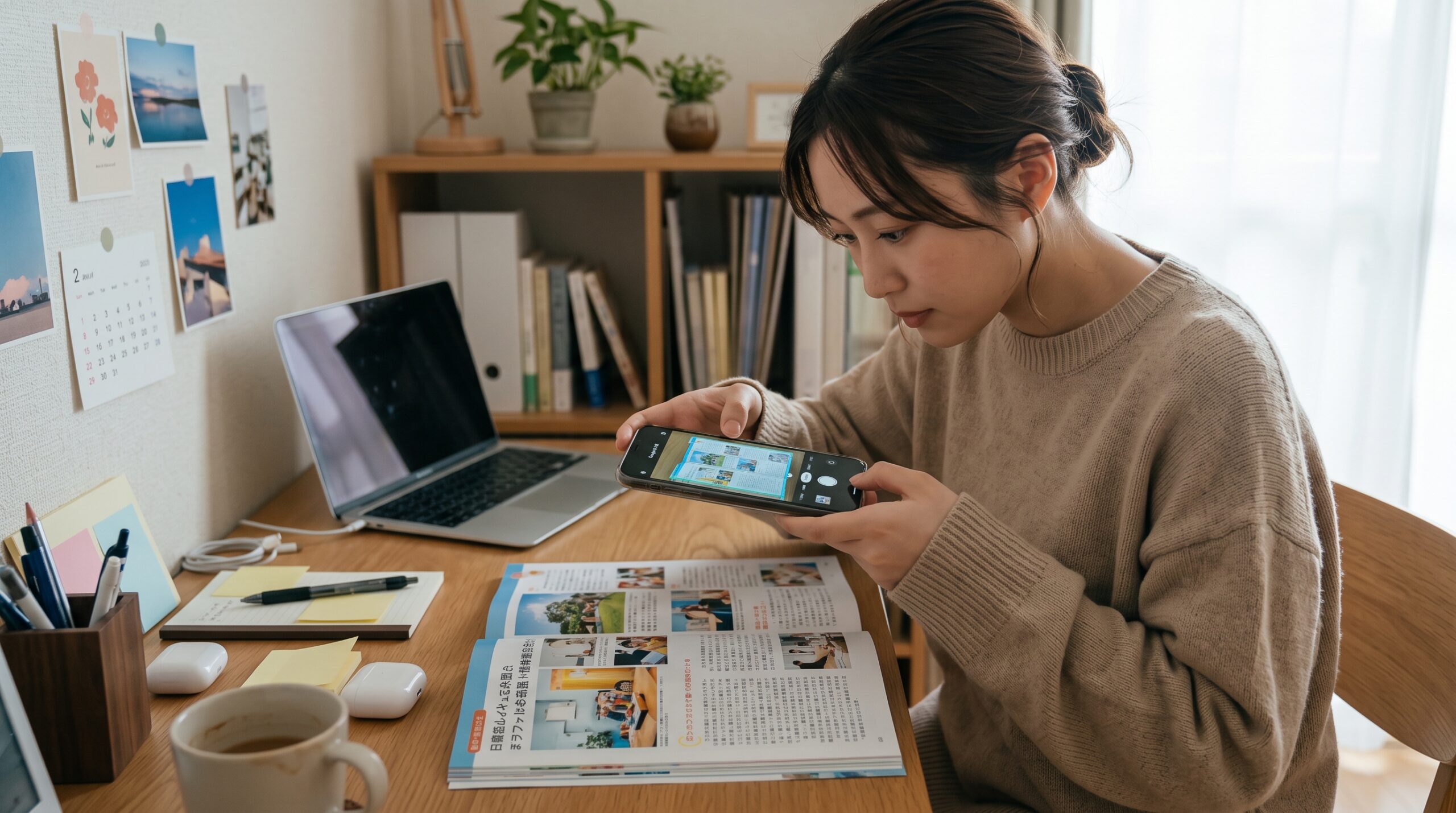
The built-in scanning feature in the Google Drive mobile app (iOS / Android) is an exceptionally convenient tool. By simply photographing paper documents, receipts, or handwritten notes with your smartphone camera, you can save them directly to the cloud as clean, high-quality PDF files.
1. Basic Step-by-Step Guide
- Launch the App and Start Scanning: Open the Google Drive app on your phone, tap the “+” (Create) button in the bottom-right corner, and select “Scan” (or the camera icon).
- Photograph the Document: Point the camera at the document. In auto-capture mode, the shutter fires automatically once the document fits within the frame (manual capture is also available).
- Edit and Fine-Tune:
- Crop / Edge Adjustment: If the edges are misaligned, adjust them using the crop icon.
- Filters: Apply image enhancements such as color or black-and-white.
- Rotate / Delete: Adjust page orientation or delete unnecessary pages.
- Add Pages: Tap the “+” icon in the bottom-left corner to scan multiple pages consecutively into a single file.
- Save: Tap “Save” in the top-right corner, specify the file name and destination folder, and confirm.
2. Practical Use Cases
| Use Case | How to Use |
| Expense Reimbursement & Receipt Tracking | Scan receipts on the spot while traveling or shopping. This prevents lost paper receipts and streamlines tax returns and accounting submissions. |
| Archiving Contracts & Critical Documents | Digitize user manuals, contracts, medical statements, and official records for paperless cloud storage, keeping your desk clutter-free. |
| Sharing Whiteboards & Meeting Notes | Convert whiteboards and handwritten meeting notes into PDFs immediately after discussions to distribute them seamlessly to team members. |
| Organizing Academic & Study Materials | Digitize course handouts and key textbook pages so you can review them anytime on a phone or tablet. |
11-2: Using Other Scanning Solutions
(1) iPhone Live Text
Apple’s “Live Text” feature uses on-device AI to automatically recognize characters in photos, videos, or the live camera viewfinder, allowing you to treat them as copyable digital text.
It can be used in two ways:
- From the Photos App or Screenshots:
- Open a photo or screenshot that contains text.
- Touch and hold the text you want to extract (selection handles will appear).
- Choose actions such as “Copy,” “Translate,” or “Look Up” from the pop-up menu.
- In Real Time via the Camera App:
- Open the Camera app and frame the text you want to capture.
- When recognized, a yellow bounding box and a Text Selection icon appear in the bottom-right corner; tap it.
- The camera frame freezes, allowing you to tap and highlight the text directly to copy or translate it.
(2) Dedicated Document Scanners (ScanSnap)
Dedicated desktop document scanners, such as PFU’s ScanSnap series, allow you to convert physical paperwork into searchable PDF archives at scale.
Here is the standard workflow for scanning to PDF on a PC:
- Load Documents: Align the sheets and place them into the automatic document feeder (ADF) tray (multiple pages can be loaded simultaneously).
- Open the Scan Interface: Launch ScanSnap Home on your PC and click [Scan] (or the scan window button) in the upper-left corner.
- Verify and Set File Format (PDF): Select a profile (e.g., “Save to Folder” or “Documents”).
- Confirm PDF Format: Ensure the file format is set to “PDF.”
- Multi-Page Consolidation: Click the gear icon (Edit Profiles) > File format, and verify that “PDF (Single file)” or “Create one PDF file for all pages” is selected.
- Execute Scan: Press the physical [Scan] button on the unit or click [Scan] on your screen to begin scanning.
- Review Destination and File Name: Once processing completes, the PDF is saved to the designated directory (defaulting to the ScanSnap folder within your Documents directory).
11-3: Using Copyright-Safe Digital Sources
When providing inputs (prompts, attached images, or documents) to generative AI models like ChatGPT, Claude, and Gemini, digital materials that carry zero (or negligible) copyright risk generally fall into five categories:
1. Safe Source Material Categories
- Content to Which You Own All Rights:
- Your original writing, research papers, source code, illustrations, and photographs.
- Internal company documents, manuals, and proprietary enterprise data.
- 💡 Note: If user inputs are configured to be used for AI model re-training (often enabled by default on free consumer tiers), there is a risk of data leakage or confidentiality breach. For commercial use, ensure that training opt-out settings, enterprise accounts, or API-based access are utilized.
- Public Domain Works (Expired Copyright): Under standard copyright terms (typically lasting up to 70 years after the creator’s death), rights eventually expire, placing works into the public domain.
- Classical literature and historical writings (e.g., novels by Soseki Natsume or Osamu Dazai, plays by Shakespeare).
- Literary archives of out-of-copyright texts (such as Aozora Bunko or Project Gutenberg).
- Historical artworks and public-domain digital archives (e.g., digitizations of historical ukiyo-e prints and classic paintings).
- Explicitly Permissive or Waived Licenses (e.g., CC0): Data for which the creator has explicitly waived rights or granted broad reuse permissions.
- Text, images, and datasets released under CC0 (Creative Commons Zero).
- Curated public-domain repositories (e.g., Unsplash public-domain assets, Pixabay, Project Gutenberg).
- 💡 Note: Certain websites incorporate standalone clauses prohibiting AI web-scraping or model training within their Terms of Service. Always cross-check the site’s Terms of Use in addition to its license tags.
- Non-Copyrightable Information (Raw Facts, Data, and Ideas): Copyright law protects creative expressions of thoughts or emotions. Mere objective facts and raw data do not qualify for copyright protection.
- Objective statistical data, numerical figures, meteorological records, and stock prices.
- Public facts and the objective factual core of news reporting (note: because the exact phrasing and editorial structure of news copy are protected by copyright, convert articles into objective bulleted facts before inputting them).
- Statutes, court precedents, and official governmental notices (explicitly exempt under Article 13 of Japan’s Copyright Act).
- Content Authorized by the Rights Holder for AI Processing:
- Commercial datasets and media collections whose licenses explicitly permit generative AI ingestion and downstream commercial exploitation.
2. Key Takeaways Under Japanese Copyright Law (Article 30-4)
Article 30-4 of the Copyright Act of Japan provides that copyrighted works may generally be exploited without the copyright holder’s prior consent for the purpose of “information analysis” (such as AI model training and computational data processing).
However, in everyday practical use, users must take care not to trigger exceptions where a use is construed as possessing an unauthorized “enjoyment purpose” alongside analysis:
🚨 High-Risk Input Practices to Avoid:
- Ingesting a specific existing work with the explicit intent to generate an imitation (e.g., feeding an artist’s signature illustration to instruct the model: “Draw a new scene matching this exact artist’s style”).
- Knowingly uploading pirated software, leaked documents, or illegally hosted content for AI ingestion.
- Circumventing technical protection measures or clear contractual restrictions on paywalled services designed to bar AI extraction.
3. Safety Checklist Before Submitting Inputs
- [ ] Is this proprietary or original content created by you or your organization (free of third-party copyrighted material)?
- [ ] Is model training toggled off in your account settings (especially when handling confidential or personal data)?
- [ ] If uploading external creative works, are you using them strictly for informational synthesis rather than generating derivative, highly similar creative outputs?
- [ ] Does your usage comply with the terms of service of the host platform hosting the text or media?
In short, utilizing your own original data, public domain assets, and purely objective factual data represents the safest approach. When processing third-party works, restrict your use to analytical tasks (summarization, extraction, data synthesis) and avoid prompting the system to generate close approximations of the original.
11-4: Utilizing Screenshots and Images
Designating visual media—such as screenshots and photos—as source material for generative AI radically expands your research capabilities, allowing models to generate far deeper and more comprehensive domain knowledge. For example, consider a photograph recently taken by the author at the Koishikawa Botanical Garden in Tokyo:
By attaching this photo to Gemini alongside the prompt: “Explain what is shown in this picture,” the system provides the following targeted response:
“This photograph shows the well of the historic Koishikawa Yojosho (Koishikawa Sanatorium) located on the grounds of the Koishikawa Botanical Garden in Bunkyo Ward, Tokyo.
📸 Visual Elements in the Image:
- Well Protected by Roof and Fence (Center):
- Beneath a wooden gabled roof, you can see the wooden wellhead curb surrounded by a low wooden picket fence.
- For safety, the opening is covered with a woven bamboo slatted screen (sunoko).
- Historical Information Marker (Foreground Left):
- A descriptive plaque explains the historical significance of the site.
💡 Historical Background (What was the Koishikawa Yojosho?):
Established in 1722 (Kyoho 7) during the reign of the eighth Tokugawa shogun, Yoshimune Tokugawa, the Koishikawa Yojosho was a charity hospital providing free medical care to impoverished citizens.
- Origin: It was founded after town physician Shosen Ogawa submitted a petition via the Meyasubako (complaint box introduced by Yoshimune), pleading for a dedicated facility to aid people unable to afford medical care.
- Literary Significance: The clinic served as the backdrop for Shugoro Yamamoto’s novel Red Beard’s Clinic (Akahige Shinryotan), which was adapted into Akira Kurosawa’s acclaimed film Red Beard.
This well supplied clean drinking water to patients and staff throughout the Edo period, and historical records note that it continued to serve local residents as an emergency water source during the Great Kanto Earthquake of 1923.”
(Source: Gemini output)
Because an image alone can yield such thorough, context-rich historical and architectural breakdowns, this technique is an invaluable asset when curating travel guidebooks, photobooks, and local research projects (though factual claims should naturally be cross-checked against authoritative secondary references).
11-5: Tapping Foreign-Language Sources
The final cornerstone of the “Input Revolution” driven by generative AI is the effortless utilization of foreign-language sources.
More than 90% of the information available across the global internet is written in languages other than Japanese. Historically, accessing and synthesizing foreign-language material required advanced linguistic fluency or cumbersome manual translation workflows. However, modern multimodal generative AI models have been pre-trained on corpora spanning virtually all major languages on Earth.
When you provide foreign-language reference links or documents, the AI parses their semantic content immediately and delivers coherent, nuanced analyses directly in your target language. This seamless elimination of language barriers represents a genuine Input Revolution that traditional search engines could never deliver.




Comments