 Japanese
3-1: What Is a Bookmark?
In Google Chrome, a bookmark is a feature that saves the URL (web address) of your favorite websites so you can easily revisit them at any time. Bookmarks offer the following advantages:
- One-Click Access to Websites: By displaying frequently used sites on the “Bookmarks bar,” you can navigate to those pages the moment you open your browser.
- Neat Organization with Folders: You can create folders such as “Work,” “Hobbies,” or “Recipes” to categorize your bookmarks as they grow in number.
- Synchronization Across Smartphones and Other PCs: As long as you are signed in to Chrome with your Google Account, you can access and use bookmarks saved on your computer directly from Chrome on your smartphone or tablet.
To bookmark a page, open the web page you wish to save and click the star icon (☆) on the right side of the address bar (where the URL is displayed). Once the star turns blue (or your active theme’s accent color), the page has been successfully bookmarked.
3-2: Hierarchical Structuring and Iconization of Bookmarks
In the Chrome browser, the designated area for keeping bookmarks is the horizontal strip located directly beneath the search bar (address bar), which displays your favorite sites in a single row. This is known as the “Bookmarks bar.”
Hierarchical organization—creating folders within folders—is the most effective way to keep a large number of bookmarked websites tidy. The easiest way to organize bookmarks hierarchically is by using the “Bookmark Manager.”
The approach to nesting folders is essentially the same as in cloud storage. However, if you go too deep into three or four tiers (a folder inside a folder inside a folder, and so on), you will have to click multiple times just to reach your target site, which becomes counterproductive. Generally, keeping the hierarchy within three levels is considered best practice; going deeper makes locating target files difficult.
Bookmarks are fundamentally tools designed to make everyday website access easier—nothing more, nothing less. They do not function as a generative AI portal, nor do they feature integration with AI. Therefore, the wisest strategy is to keep the items displayed on the bookmarks bar to a minimum. Instead of using folders here, take advantage of the wide horizontal space by lining up “site icons” (favicons) of your most frequently visited websites. Here is how to do it:
- Display the Bookmarks Bar: If the bar is not visible, press
Ctrl + Shift + Bon Windows (orCmd + Shift + Bon Mac) to display it. - Open the Edit Dialog: Right-click the bookmark you want to turn into an icon only (or tap with two fingers on a Mac trackpad).
- Select “Edit”: Click “Edit” from the context menu that appears.
- Delete the Name: Delete all text (the site title, etc.) in the “Name” field using the Backspace key so that it is completely blank.
(Note: Make sure you do not alter the “URL” field.) - Save: Click the “Save” button in the bottom right corner.
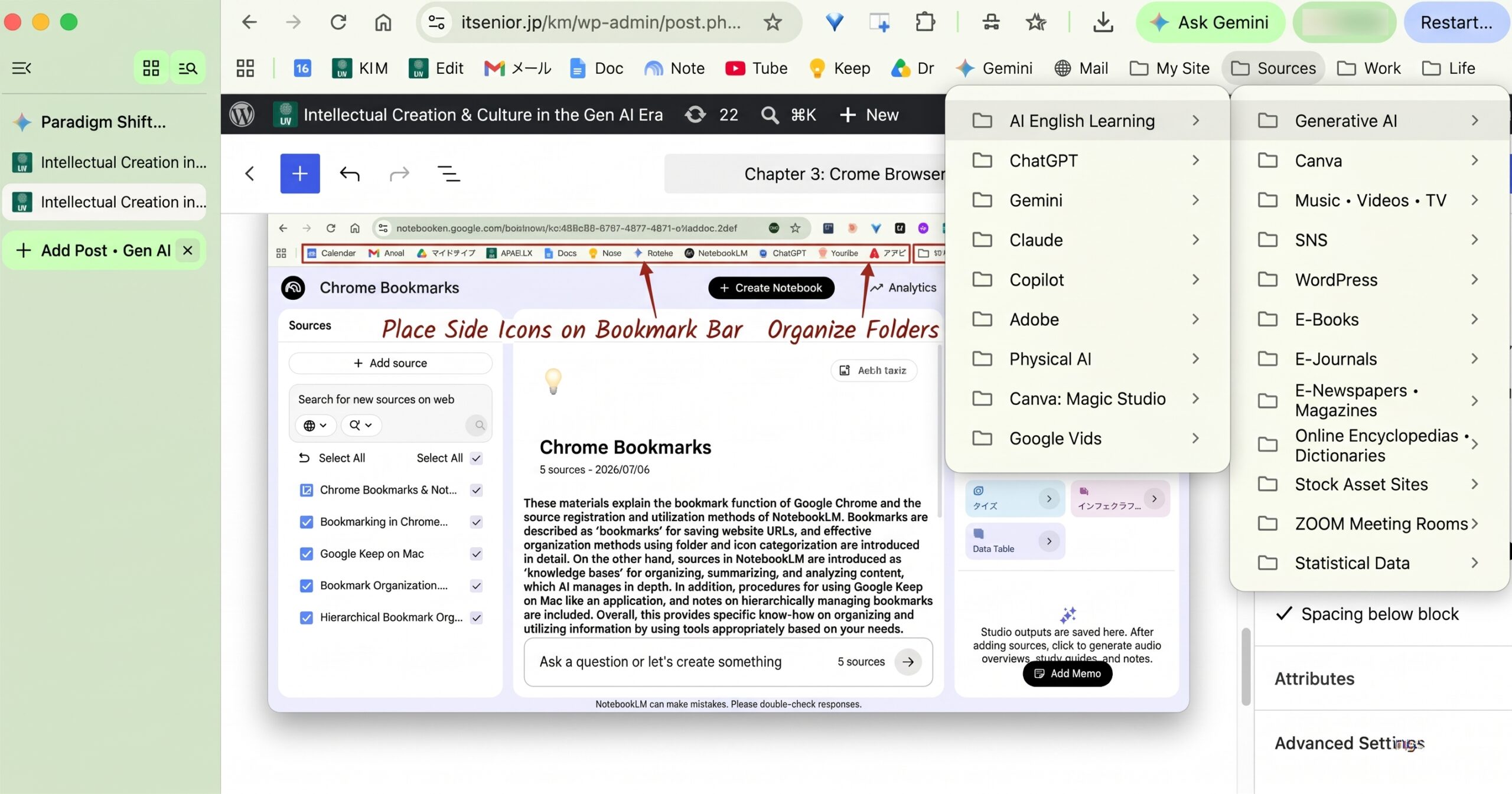
Adding a short title next to an icon can also make it easier to identify (see the image below). Clicking any of these icons allows you to launch the intended website or web service directly—an ideal layout for a portal.
3-3: Arranging Folders and Icons on the Bookmarks Bar
In an era where generative AI has become widespread, searching for information on the web is far more commonly done via Google Search or generative AI queries rather than by accessing specific pages saved in browser bookmarks. Consequently, the total number of web pages one needs to register as browser bookmarks should be significantly smaller than before.
Because the browser’s bookmarks bar is a wide horizontal area, you should arrange icons for the web pages you visit most frequently. In my case, moving from left to right, I display icons along with brief titles for: Google Workspace Admin, Gmail, Google Drive’s “My Drive,” the “KM Method 2.0” website, Google Docs, Google Keep, and various generative AI web pages (Gemini, Gemini Notebook, ChatGPT, and Claude). In each instance, tapping the icon opens the corresponding web page in full view within the browser.
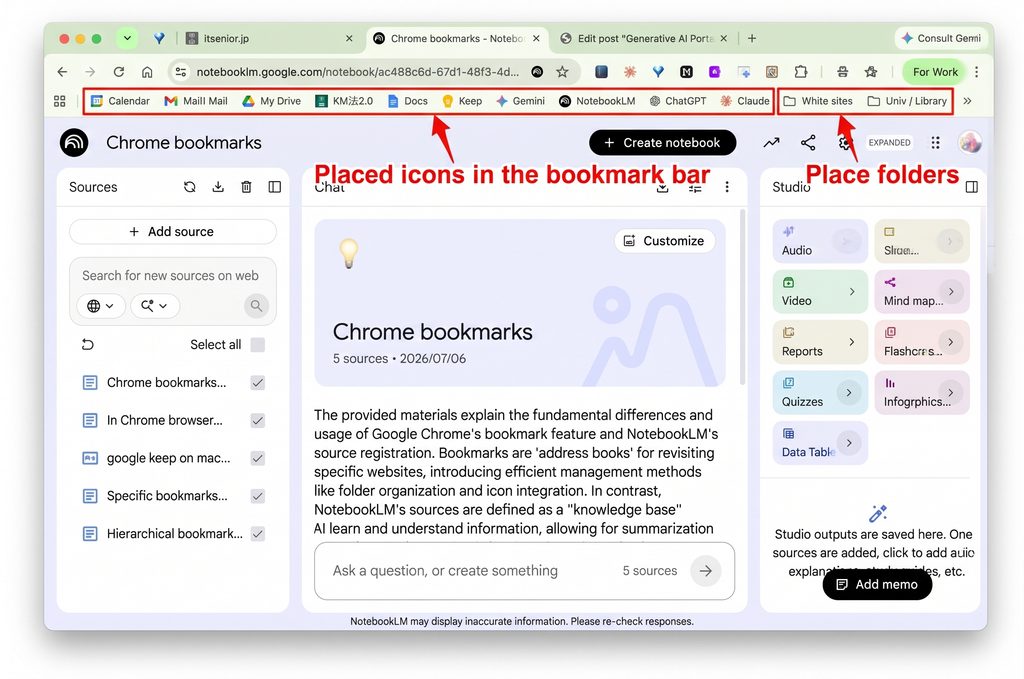
When it comes to creating folders on the bookmarks bar and deciding which web pages to store inside them, in the era of generative AI it is best to narrow them down to just four categories: “Sources,” “Work (School),” “Living,” and “Personal.”
- “Sources”: Refers to information sources that should be fed as inputs into NotebookLM—such as online newspapers, magazines, streaming video platforms, social media, online databases, and digital bookstore sites.
- “Work (School)”: Sites you access frequently in connection with your workplace, job tasks, or academic studies.
- “Living”: Bookmarks related to daily life, including consumer affairs, financial transactions, real estate, health/medical care, and sports.
- “Personal”: Sites related to yourself, family, and friendships.
While you may have bookmarked many different websites in the past, a significant portion of them will be far more effective if migrated into input sources for generative AI—specifically by registering them into NotebookLM sources (detailed later), where they can be actively leveraged. Traditional bookmark bar management lacks integration with generative AI at present, making its standalone utility considerably limited.






Comments