 Japanese
4-1: Opening via the “Ask Gemini” Button
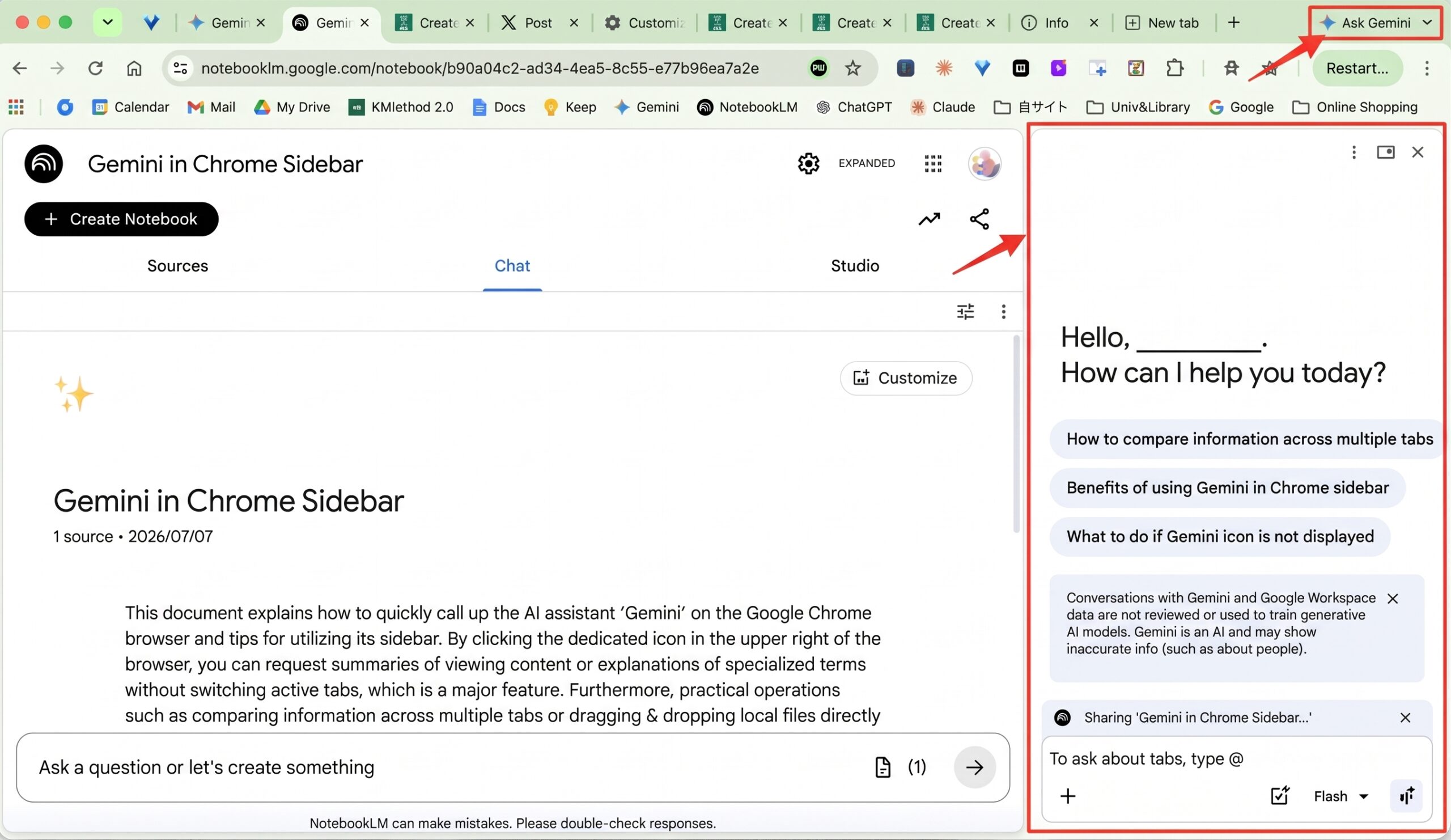
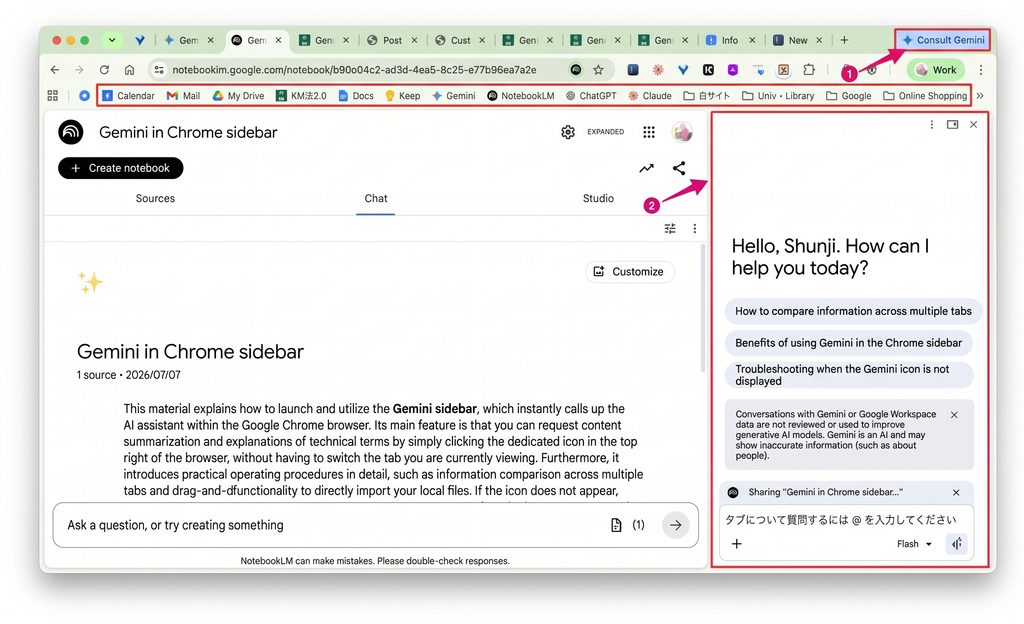
When you launch the latest version of the Chrome browser, you will notice an “Ask Gemini” button added to the toolbar in the upper-right corner. Released in May 2026, this remarkably convenient feature seamlessly unifies the browser with AI.
Clicking this button ❶ instantly opens the sidebar, launching a chat interface powered by Google’s AI, Gemini ❷.
Clicking the “Ask Gemini” button opens the Gemini sidebar.
AI Tutorial Video (1): How to open the sidebar with “Ask Gemini” in Google Chrome and summarize articles on the main screenhttps://youtu.be/ZUe1WqjfXws
The standout capability of the Gemini sidebar is that Gemini understands the content of the web page you are currently viewing (on the left) in real time. Tedious steps—such as opening the standalone Gemini website and copying and pasting URLs—are completely eliminated.
Specifically, it supports use cases such as:
- Instant Page Summarization: While viewing a lengthy news article, an English research paper, or a complex technical site, simply ask, “Summarize this article in Japanese in three lines,” and it will generate a concise overview directly in the adjacent sidebar.
- Video Summarization: While watching a video on YouTube or similar platforms, you can ask questions like, “What are the key takeaways from this video?”
- Multi-Tab Comparison: With multiple travel plans or product pages open, you can instruct it: “Compare the information across my open tabs and organize it into a table” (you can designate specific tabs by typing
@in the chat input).
4-2: Opening ChatGPT in the Sidebar via the MaxAI Chrome Extension
In KM Method 1.0, you could open Microsoft Edge’s Copilot sidebar, but running other generative AIs like Gemini or ChatGPT in the sidebar required manually registering each AI’s icon in the side menu bar. With KM Method 2.0, you can leverage Chrome extensions to run features of other generative AIs directly within the sidebar view.
While there are various extensions available for displaying ChatGPT in the sidebar, this section covers the setup and usage of MaxAI, an extension that can be used free of charge.
1. Installation
- Search for “MaxAI” on the Chrome Web Store and click “Add to Chrome.”
- Once installed, open the puzzle piece icon (Extensions menu) in the top-right corner of the browser and pin MaxAI for quick access.
2. Opening the Sidebar
- Click the MaxAI icon ❶ in the extension toolbar at the top right, or press the assigned keyboard shortcut, to slide out the AI chat interface (sidebar) ❷ along the right edge of your screen.
3. Chatting with Your Standard Account
- Because it runs directly through your standard ChatGPT (OpenAI) account, messaging is fast, responsive, and secure.
The true strength of a sidebar AI lies in using it side-by-side while reading or viewing content:
- Website Summarization and Translation: While reading international news or lengthy blog posts, simply enter prompts like “Summarize this page in 3 lines” or “Translate this section into Japanese” to digest the content without switching tabs or windows.
- Assisted Research: While reading results from a Google search, you can ask on-the-spot follow-up questions, such as: “Explain the technology mentioned here in simpler terms.”
- Writing Assistance: When drafting replies in Gmail or crafting social media posts, you can treat the AI as a sounding board right beside your work: “Revise this to sound more professional and polite for business.”
4-3: Opening Claude in the Sidebar via a Chrome Extension
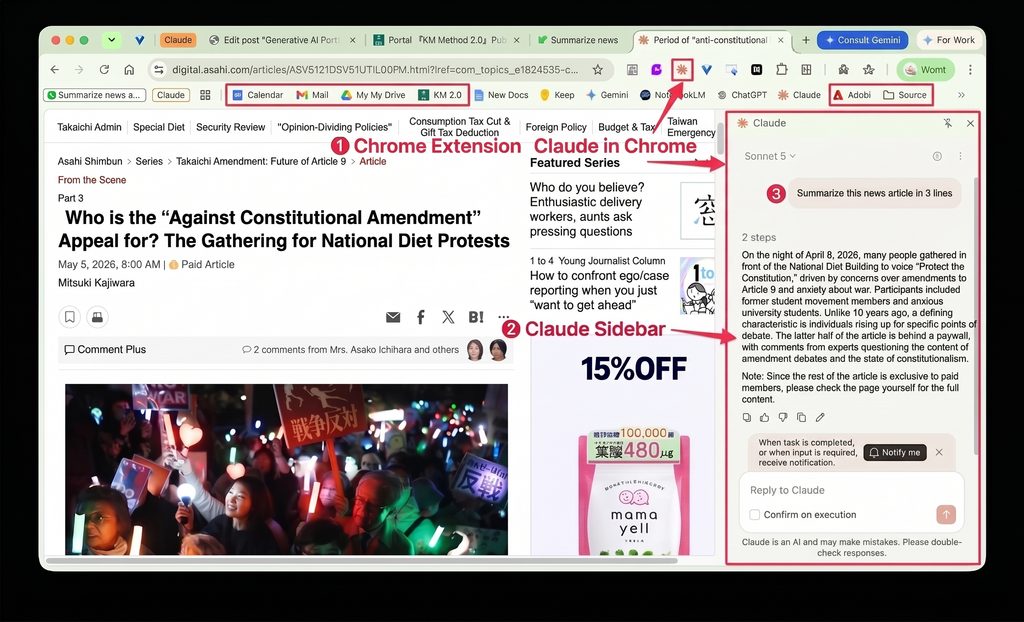
Claude in Chrome enables you to access Anthropic’s Claude generative AI directly from Chrome’s sidebar using a Chrome extension. It is a powerful tool capable of reading the active page, comparing multiple tabs, and filling out web forms autonomously from within the sidebar.
1. Initial Setup (Installation and Sign-In)
- Install the Extension: Search for “Claude in Chrome” on the Chrome Web Store and add the extension.
- Pin the Extension: Click the puzzle piece icon (Extensions menu) in the top-right corner of the browser and click the pin icon next to Claude to dock it to your toolbar.
- Sign In: Click the pinned icon to open the side panel and sign in with your Anthropic account. (Note: Advanced automation capabilities demonstrate their full potential primarily on Pro or higher plans.)
2. Basic Usage
Use cases fall broadly into three categories:
(1) Directing Prompts About the Current Page
Provide chat instructions to Claude in the side panel while keeping the active web page in view.
- Prompt examples:
- “Summarize this news article in 3 bullet points.”
- “Extract only the critical limitations and constraints from this specification document.”
(2) Delegating Automated Browser Actions
Instruct Claude to autonomously handle multi-step workflows such as searching, comparing, and inputting data.
- Prompt examples:
- “Compare the pricing plans between this tab and the adjacent tab, and compile the differences into a comparison table.”
- “Extract the product titles, prices, and review ratings from the product list displayed on this screen, and export them as a CSV.”
- “Automatically populate this lengthy inquiry form using the company details provided below.”
(3) Shortcuts and Scheduled Execution (Slash Commands /)
Type / (forward slash) in the chat input to access a menu of automated actions:
- Save Routine Tasks: Register frequently used prompts or operational sequences as shortcuts for one-click invocation in future sessions.
- Scheduled Runs: Configure recurring tasks, such as “Check this website for updates every day at [Time].”






Comments