 Japanese

Gemini is a cutting-edge multimodal generative AI developed by Google. Going far beyond traditional chatbots where you simply enter text to receive an answer, its defining feature is the ability to seamlessly understand and process text, audio, images, video, and code. Compared to other generative AI models, it offers the following advantages:
Table of Contents
- 6-1: Native “Multimodal Design”
- 6-2: Powerful Integration with Google Services (Extensions)
- 6-3: Practical Use Cases for Gemini
- 6-4: Launching Gemini in the Main Chrome Window
- 6-5: Using Gemini in the Chrome Side Panel
6-1: Native “Multimodal Design”
Gemini was engineered from the ground up to handle text, audio, images, and video simultaneously.
- Text: Advanced writing, summarization, multilingual translation, and programming.
- Images & Camera: Identifying objects in photos and extracting/analyzing data from charts and graphs.
- Video Understanding: Ingesting video files to recognize “what is happening” inside the footage, summarize it, and answer questions about it.
6-2: Powerful Integration with Google Services (Extensions)
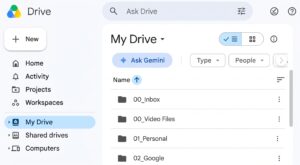
Gemini connects seamlessly with everyday Google services like Gmail, Google Drive, Google Maps, and YouTube.
- “Summarize the document saved in my Google Drive.”
- “Create an itinerary based on hotel confirmation emails in my Gmail.”
It effortlessly handles these types of personalized requests.
6-3: Practical Use Cases for Gemini
- Business & Work: Drafting emails, summarizing meeting minutes, brainstorming ideas, generating and debugging code.
- Creative: Generating images, creating and editing videos, developing storylines, and drafting copy/slogans.
- Learning & Self-Improvement: Explaining dense academic papers or reports, serving as a language practice partner, preparing for exams.
- Everyday Life: Planning travel itineraries, suggesting recipes from photos of ingredients in your fridge, troubleshooting electronic devices.
6-4: Launching Gemini in the Main Chrome Window
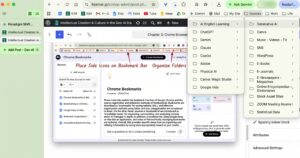
Clicking the Gemini icon saved on your Chrome bookmark bar opens the Gemini homepage directly in the main browser window. Simply enter your prompt into the “Ask Gemini” input field to start using the model.
6-5: Using Gemini in the Chrome Side Panel
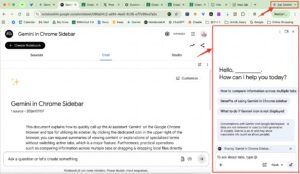
Another way to launch Gemini in Chrome is by clicking the “Ask Gemini” button (icon) in the top-right corner of the browser. In this mode, Gemini opens in the right-side panel rather than the main window, allowing you to summarize or ask questions about the webpage currently open.
Steps:
- Open the webpage you want to explore (e.g., news articles, blogs, research papers, technical documentation, or YouTube videos) in your main browser window ❶.
- Click the “Ask Gemini” button (icon) in the top-right corner of Chrome to open the side panel ❷.
- Type your question about the current webpage into the input box in the side panel.
Examples:- “Summarize the top three takeaways from this article.”
- “Explain this technical term in simple words for beginners.”
- “Summarize the content of this YouTube video ❸.”
Gemini’s response will then appear directly in the side panel ❹ (see image below). Unlike the standalone main interface, using Gemini through the side panel allows you to target the active webpage directly for quick explanations and summaries.






Comments