 Japanese

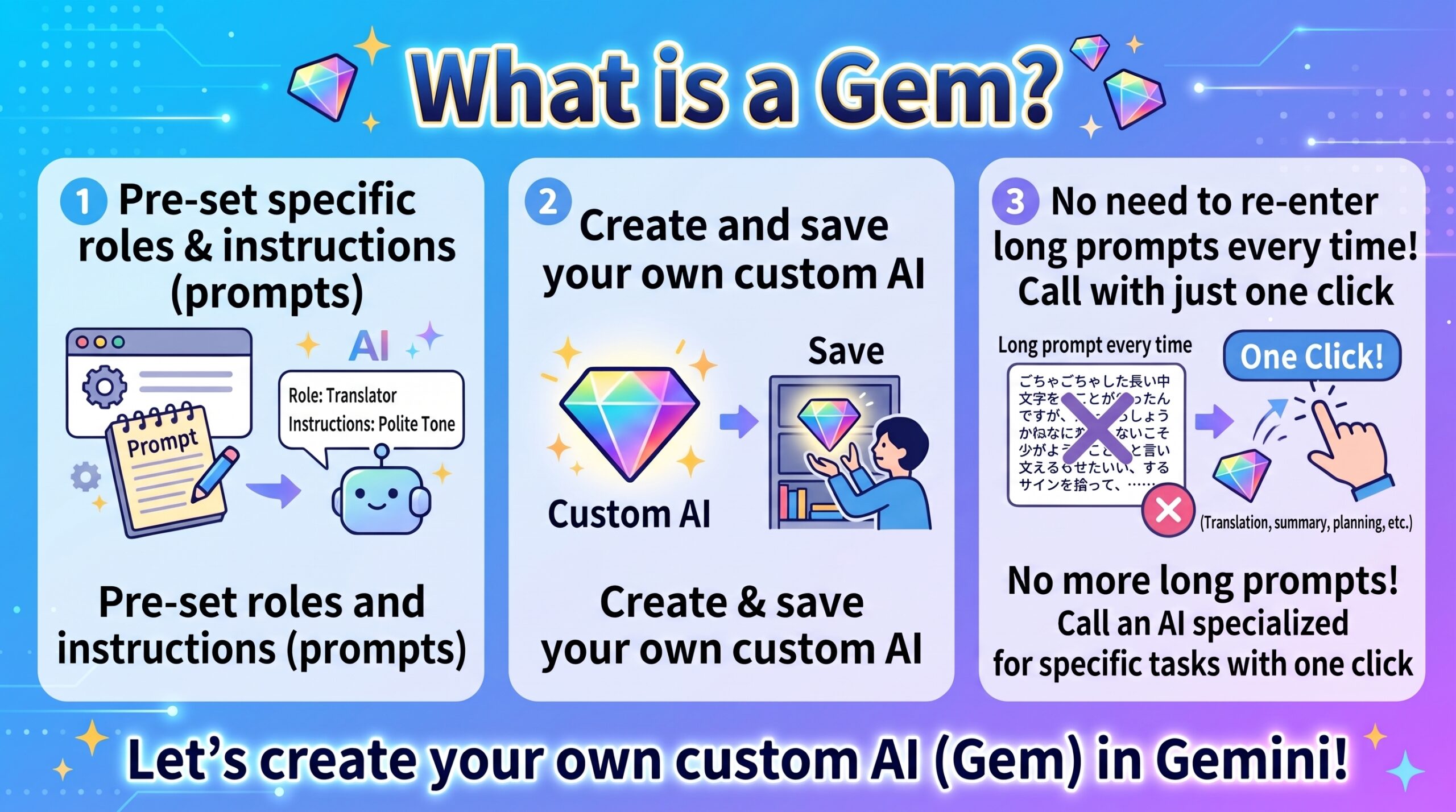
17-1: Prompt Creation and Management with Gems
A Gem is a feature within Gemini that allows you to preconfigure specific roles and instructions (prompts) to create and save your own custom AI. It eliminates the need to re-enter long prompts every time, letting you summon specialized AI assistants tailored to distinct tasks with a single click.
Here is how to create, manage, and use prompts with Gems.
1. Creating a New Gem (Saving a Prompt)
- Open the Gem Manager: In the left sidebar of the Gemini interface, click Settings, then select Gems.
- Configure Basic Settings in Gem Manager:
- Name: Enter a title for your custom AI (e.g., Email Drafting Pro, Text Translation).
- Instructions (Prompt): Input your core prompt detailing the AI’s role, background context, output format, and rules.
- Add Knowledge (Files) (Optional): Upload PDF or text files as reference material so the Gem can answer questions grounded in those documents.
- Click [Save]: Click the save button in the bottom right corner to store your new Gem.
2. Writing High-Precision Prompts for Gems (Templates)
Entering structured prompts into the Gem’s Instructions field ensures consistently high-quality outputs.
Example 1: Social Media Post Creation
Markdown
# Role
You are a professional blogger skilled at writing engaging, friendly, and logically structured posts online.

# Task
Create a post for social media (X/Facebook) based on the user's daily activity log.

# Constraints & Rules
- Keep within 140 characters.
- Add 2 to 3 relevant hashtags.
- Use emojis moderately to enhance readability.

# Output Format
[Body]
(Text content)

[Hashtags]
#Tag1 #Tag2
Example 2: Long-Form Article & Document Summarization
Markdown
# Role
You are an expert in information synthesis and summarization.

# Task
Organize long-form text or articles into a clear, easy-to-read format.

# Constraints & Rules
- Explain technical jargon in plain language.
- Focus strictly on key facts; exclude subjective opinions or speculation.

# Output Format
- Under 100 characters overview
- 3 key takeaways (bullet points)
- Detailed summary
Example 3: Brainstorming & Ideation
- Role: Collaborative research project lead specializing in novel yet feasible study proposals.
- Task: Propose ideas tackling the topic from multiple angles.
- Constraints & Rules: Provide 5 ideas total: 2 standard approaches, 2 unconventional angles, and 1 cutting-edge, high-risk/high-reward concept.
- Output Format: For each idea, specify Concept, Target Audience, and Feasibility (High / Medium / Low).
Example 4: English Translation + Natural Phrasing Enhancements
- Role: Bilingual translator well-versed in Japanese and English nuances.
- Task: Translate Japanese to natural English (or vice versa).
- Constraints & Rules: Avoid literal translations; adopt natural conversational or professional business phrasing suited to the context. Include a brief commentary explaining key phrasing choices.
- Output Format: Translated Text + One-point commentary on grammar and nuance.
3. Calling and Using Your Gems
- Your saved Gems (e.g., Email Drafting Pro) appear in the left sidebar menu of Gemini.
- Click the Gem you want to use to open its dedicated chat interface.
- Simply enter your raw text or core request; the Gem will process it following its pre-programmed instructions.
4. Managing Gems (Updating, Deleting, and Duplicating)
You can edit and manage existing Gems anytime via the Gem Manager.
- Refining Prompts (Edit): If output quality deviates from expectations, open the Gem Manager, click the Edit (pencil icon) next to the Gem, and fine-tune its rules and constraints.
- Duplicating Gems: When creating a new Gem based on an existing setup, copy the instruction set in the edit screen and paste it into a new entry.
- Deleting Gems: Remove obsolete Gems by clicking the More options (three dots) menu on the right side of the Gem listing and selecting Delete.
Comparison: Gems vs. Traditional Prompt Management
| Management Method | Pros | Cons |
| Notepads / Spreadsheets | Easy to list, organize, and share with others. | Requires copy-pasting the prompt every single time. |
| Gemini Gems | Zero copy-pasting needed. Swap out variables and run instantly. | Usable only inside the Gemini interface. |
Converting recurring workflows (summarization, proofreading, copywriting, etc.) into Gems listed in your sidebar provides the most streamlined prompt setup.
17-2: Utilizing Google Drive for Prompt Operations
Using Google Drive for prompt storage goes beyond simple file hosting: pairing it with Gemini’s document referencing and Google Workspace’s collaborative features creates a scalable environment for prompt development and maintenance.
1. Structuring a Prompt Directory on Google Drive
Establish a dedicated folder taxonomy to reduce search overhead:
- 📁
00_Prompt_Management- 📁
01_Templates: Master copies of reusable prompt frameworks - 📁
02_Daily_Workflows: Prompts used in day-to-day operations - 📁
03_Knowledge_References: Baseline reference files (background data, FAQs, style guides)
- 📁
2. Building Templates in Google Docs
Google Docs handles prompt design cleanly thanks to Smart Canvas features and reliable layout formatting.
- Format Prompts with Smart Chips (Code Blocks):
Type@Code blockin Google Docs or select Insert > Smart chips > Code block to create a distinct container.- Benefit: Distinct background styling makes prompt boundaries immediately visible. You can copy the entire block via drag-selection or the copy button.
- Highlight Variables (Fill-in Placeholders):
Mark customizable slots with clear syntax like{{input_text}}or[Company Name]and highlight them with a background color to prevent skipped inputs.
3. Managing Prompts and Benchmarks in Google Sheets
For version tracking and A/B testing across prompt iterations, Google Sheets works best.
Column Setup Example:
- Col A: ID / Name (
PRM-001,PRM-002) - Col B: Category (Sales Emails, Summarization)
- Col C: Prompt Body
- Col D: Variable Input Example
- Col E: Output Quality & Review Notes
- Tip: Use Data > Data validation to add dropdown menus for categories and ratings (★1 to ★5).
4. Google Drive × Gemini Integrations
- Referencing Drive Documents as Prompt Context:
Type@Google Drivedirectly in the Gemini chat input to target files stored in your Drive (e.g.,FY2026_Operations_Manual.pdforCorporate_Tone_and_Style_Guide.docx).- Prompt Example:
“@Google Drive: Reference ‘New_Product_Proposal.pdf’ and generate a prompt template designed to draft social media launch announcements from its contents.”
- Prompt Example:
- Collaborative Prompt Polishing via Comments:
Share your prompt docs with teammates and use comments to pinpoint instructions that produce ambiguity or identify missing edge-case constraints.
17-3: Prompt Templates
Standardizing instructions through templates guarantees consistent, repeatable outputs across team members. Deconstruct AI instructions into modular blocks and isolate variable fields.
1. Reliable Core Template Architecture
Structuring prompts around these five elements gives the model clear direction:
Markdown
# Role
You are an expert [writer / illustrator / academic researcher].

# Objective
Produce [deliverable name] designed to achieve [intended goal].

# Constraints & Rules
- Target Audience: {{target_audience}}
- Tone & Manner: {{formal / casual / analytical}}
- Length: Approximately {{target_length}}
- Negative Constraints: Avoid {{technical jargon / vague generalities}}

# Output Format
Format the output according to the structure below (Table / Bullet Points / Markdown):
---
(Insert exact layout schema here)
---

# Input Data
{{Paste source text or dataset here}}
2. Three Rules for Effective Template Design
- Wrap Variables in Explicit Syntax: Use
{{variable_name}},[variable_name], or<variable_name>so the AI distinguishes placeholders from static rules. - Provide Concrete Examples (Few-Shot Prompting): Include one sample input paired with an ideal output to calibrate the model’s understanding of nuance.
- Specify the Output Schema Visually: Provide the exact structure—such as an empty Markdown table or numbered layout—directly in the prompt so the AI outputs into that frame.
3. Production-Ready Example: Web Article Summarizer
Markdown
# Role
You are an expert research analyst.

# Task
Review the provided article and compile a concise briefing for busy professionals.

# Constraints
- Condense the material into 3 bullet points.
- Provide brief clarifying definitions for technical jargon.
- Keep the entire summary under 300 words.

# Output Format
■ Key Takeaways
- Point 1:
- Point 2:
- Point 3:

■ Executive Takeaway
(One-sentence core conclusion)

# Source Text
{{Paste article content here}}
4. Iteration and Maintenance
- Initial Run: Feed test data into the template and evaluate the response.
- Constraint Patching: Narrow boundaries wherever the output wanders (e.g., specify strict character bounds or enforce bullet-point structures).
- Central Storage: Save validated templates in Google Docs, Notion, or Gemini Gems for everyday team access.
17-4: Organizing Prompts with Google Docs Document Tabs
Google Docs features hierarchical document tabs and subtabs that let you organize extensive prompt libraries inside a single document without scattering individual files.
1. Recommended Tab Hierarchy
Tabs support up to three levels of nesting. Pairing category names with emojis makes scanning intuitive:
- 📂 Parent Tab 1: ✉️ Communications & Drafting
- 📁 Subtab: Formal Thank-You Email
- 📁 Subtab: Long-Form Article Editing & Polishing
- 📂 Parent Tab 2: 💡 Strategy & Brainstorming
- 📁 Subtab: Ideation Sessions
- 📁 Subtab: Competitor Benchmarking
- 📂 Parent Tab 3: ⚙️ Systems & Internal Docs
- 📁 Subtab: Blog Outline Generator
- 📁 Subtab: Automated FAQ Builder
2. Creating and Configuring Tabs
- Open the Document Outline: Click the Show document tabs / outline icon in the top left corner of Google Docs to expand the sidebar panel.
- Create Parent Tabs: Click the [+] (Add tab) button at the top of the panel. Rename the tab (e.g.,
✉️ Email Drafting) via double-click or the three-dot menu⋮. - Add Nested Subtabs: Click the three-dot menu
⋮on any parent tab and choose Add subtab. You can also drag and drop existing tabs into other tabs to reorder and nest them. - Assign Tab Emojis: Open the tab options menu
⋮, select Choose emoji, and assign a distinct icon for rapid visual recognition.
3. In-Tab Prompt Documentation Layout
Organize the contents of each tab using Markdown or Google Docs Headings:
Markdown
# ✉️ Formal Follow-Up Email Generator

## Overview
A template for drafting professional follow-up and thank-you notes after meetings.

## Prompt Instructions
You are a professional business communications specialist.
Draft a polite follow-up email conveying genuine appreciation based on the provided details below.

### Constraints
- Maintain professional business etiquette throughout.
- Incorporate bullet points where appropriate for clarity.

### Context
- Recipient: {{Name and Title}}
- Topic / Purpose: {{Meeting context, follow-up items}}

---
## Change Log & Usage Notes
- 2026/08/10: Make sure recipient title is specified, otherwise tone defaults to overly formal prose.
4. Useful Google Docs Features for Prompt Repositories
- Direct Tab URLs: Click
⋮next to any tab and select Copy link. You can paste these direct URLs into Slack, Teams, or browser bookmarks to jump straight to a specific prompt. - Integrated Document Outlines: Combining top-level tabs with in-document headings (
Heading 1,Heading 2) surfaces an automatic table of contents in the left sidebar for fast navigation. - Code Block Containers: Use Insert > Smart chips > Code block to wrap your prompt text in an isolated container that can be copied cleanly without layout formatting artifacts.






Comments