 Japanese
16-1: Differences from Conventional Generative AI
Gemini Notebook is a research and learning workspace specialized in the “understanding and analysis (grounding) of uploaded materials.” Its purpose and architecture are fundamentally distinct from conventional general-purpose AIs (such as ChatGPT or the Gemini consumer app), which focus on generating ideas and content from massive pre-trained knowledge bases.
| Comparison Item | Gemini Notebook | General-Purpose AI (ChatGPT / Gemini App) |
| Role & Objective | In-depth exploration, organization, and structuring of selected documents (AI for Comprehension) | Ideation from scratch, conversation, and text/code generation (AI for Creation) |
| Basis of Responses | Strictly grounded in user-specified sources (PDFs, Google Drive, etc.) | Pre-trained model data + Web searches (broad-ranging) |
| Information Accuracy | Cites exact source passages directly; drastically minimizes inaccurate information | Difficult to verify sources; carries higher risk of hallucinations |
| Key Distinctive Features | Audio/video overviews, slides, quizzes, automated flashcard generation | Image/video generation, code interpreter, external app integrations, Custom GPTs/Gems |
Three Primary Differences
- Rigorous Grounding and Verifiable Citations
While general-purpose AI possesses vast knowledge, it can hallucinate incorrect statements when attempting to fill in information gaps. In contrast, Gemini Notebook strictly grounds its responses in uploaded source materials (such as PDFs, URLs, and Google Docs), allowing you to jump to the exact supporting citation with a single click. - Specialized Output Formats Designed for Rapid Input and Comprehension
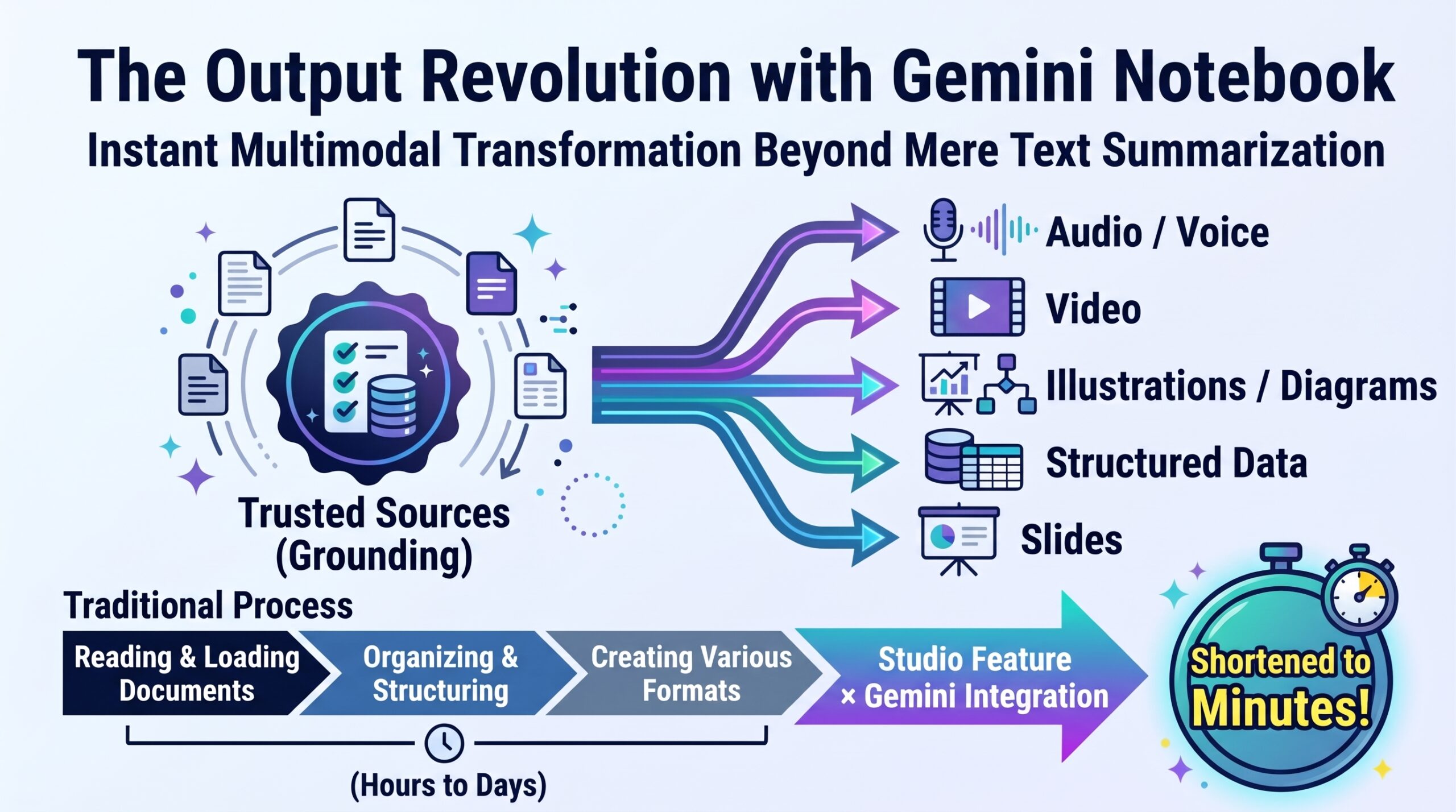
While conventional AI relies primarily on text-based dialogue, Gemini Notebook can automatically generate multi-format materials derived directly from your sources—such as two-host podcast-style “Audio Overviews,” video summaries, presentation slides, infographics, and practice quizzes. This multi-format approach drastically speeds up information absorption. - Project-Based Knowledge Aggregation and Cross-Source Synthesis
Unlike traditional AI workflows centered around single-thread chats, Gemini Notebook allows you to group extensive source libraries within dedicated project notebooks and conduct comparative analyses across all of them at once.
When to Use Which:
- Gemini Notebook: For “accurate understanding and organization of existing materials,” such as analyzing research papers and academic literature, searching internal policies and manuals, synthesizing meeting minutes and interview transcripts, or benchmarking competitor documents.
- General-Purpose AI: For “generating deliverables and ideas from scratch,” such as brainstorming proposals, drafting emails and blog posts, writing code, or asking open-ended daily questions.
16-2: Creating Notebooks and Adding Sources
In Gemini Notebook (formerly NotebookLM), your workflow begins by “creating a notebook and importing the source documents you wish to analyze and summarize.” Below is the step-by-step procedure and supported file formats.
1. How to Create a Notebook
- Access Gemini Notebook: Navigate to Gemini Notebook (
notebooklm.google.com) in your browser and sign in with your Google account. - Create a New Notebook: Click the “+ New Notebook” (or “+ Create New”) button on the home screen.
- “Add Sources” Dialog Appears: Creating a notebook automatically opens the “Add sources” modal window. (Note: First-time visits and new notebook setups will always prompt you to select sources first.)
2. Methods for Adding Source Documents
You can add up to 50 sources per notebook across four primary input types:
- ① Local Upload (Select Files): Drag and drop files from your computer or pick them via your file browser.
- Supported formats: PDF files (
.pdf), plain text files (.txt), Markdown files (.md), audio files (.mp3,.wav, etc.). Audio transcription capabilities allow you to ingest recorded lectures and meetings directly.
- Supported formats: PDF files (
- ② Google Drive Integration: Import files seamlessly from your Google Drive.
- Supported formats: Google Docs, Google Slides.
- ③ Links (URLs): Paste web links directly to import online content.
- Websites (Webpages): Paste an article, news piece, or press release URL to extract its text.
- YouTube Videos: Paste a YouTube URL to extract and process its transcript. (Note: Analysis is based on caption text, not video rendering.)
- ④ Direct Text Paste (Copy & Paste): Paste text directly from your clipboard to create a source. Useful for quickly importing email threads, scratchpad notes, or draft excerpts.
3. Source Management and Best Practices
- Adding Sources Later: The “+ Add Source” button remains accessible in the left-hand panel of your notebook at all times, allowing you to add documents as your project evolves.
- Toggling Source Selection (Checkboxes): Each added source features an individual checkbox. Unchecking specific sources lets you control exactly what documents the AI references (e.g., querying only Sources A and B while temporarily excluding Source C).
- Source Guides: Clicking any imported source automatically generates a summary and key points (“Source Guide”), allowing you to quickly review individual source contents.
16-3: Google Drive Integration
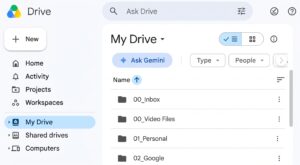
Integrating Gemini Notebook with Google Drive eliminates the friction of downloading and re-uploading files, letting the AI read up-to-date cloud assets directly.
1. Step-by-Step Drive Integration
- Create or Open a Notebook: Click “+ New Notebook” from the home screen, or select “+ Add Source” in the left panel of an existing notebook.
- Select “Google Drive”: Click the “Google Drive” icon in the “Add sources” popup window. (Authorize access permissions if prompted during your first setup.)
- Select Files and “Insert”: Check the target files from your Drive directory and click “Insert” (or “Import”) in the bottom-right corner to load them into the notebook.
2. Supported Google Drive Formats
- Google Docs (written documents, meeting notes, manuals)
- Google Slides (presentation decks, lecture slides)
- Google Sheets (structured tabular datasets, aggregated summaries)
- PDF and text files stored in Drive
3. Key Considerations for Google Drive Integration
- Source Edits and Synchronization: Unlike locally uploaded static files, Google Docs and Slides imported via Google Drive can be resynced after making edits to the original file. When changes are made in Drive, an update prompt (such as “Click to sync with Google Drive”) appears in the notebook source panel. Clicking it updates the AI’s context with the latest version.
- Permissions and Security:
- Inherited Access: You can only import files you have permission to view in Google Drive.
- Shared Notebook Considerations: When sharing a notebook with colleagues, collaborators must also have Drive permissions for the underlying files to access those specific sources.
- Data Governance: When using Google Workspace corporate or educational accounts, data read from your Drive is not repurposed to train public foundational AI models.
16-4: Hierarchical Notebook Management with Collections
The “Collections” feature in Gemini Notebook allows you to organize notebooks into folder-like hierarchical groups by project or domain, keeping your workspace clean and accessible as your notebook volume grows.
Gemini Notebook organizes information across three levels:
Plaintext
[Level 1: Collections (Folders)]
 └── [Level 2: Notebooks (Themes / Projects)]
      └── [Level 3: Sources (Documents) & Notes]
- Level 1: Collections (Top level): Broad classification categories (e.g., Literature, Media Studies, International Travel).
- Level 2: Notebooks (Middle level): Specific topics or project titles (e.g., Natsume Soseki, Agenda-Setting Theory, Swiss Alps Trip).
- Level 3: Sources & Notes (Base level): Underlying source documents (PDFs, Drive files) and active workspace notes.
Creating and Managing Collections
- Creating a New Collection: From the notebook overview home screen, click the “Add / Create Collection” icon (
+) located in the side menu or top bar, then enter and save your category label. - Moving Notebooks into Collections:
- Drag-and-Drop: Drag existing notebook cards directly into your target collection.
- Menu Action: Click the three-dot menu icon (
...) on a notebook card and select “Move to collection.”
- Filtering and Navigation: Selecting a collection from the side panel filters your dashboard to display only the notebooks assigned to that group.
Operational Best Practices
- Organize by Project Phase: Group notebooks by status (e.g., “In Progress,” “Archived,” “Knowledge Base”) to focus your dashboard on current priorities.
- Avoid Overcrowding Single Notebooks: While notebooks hold up to 50 sources, mixing unrelated topics inside a single notebook degrades contextual retrieval accuracy. Keeping broad categories as Collections and sub-topics as separate Notebooks yields cleaner organization and higher search precision.
16-5: Using the Studio Feature
The Studio panel on the right side of Gemini Notebook turns your analyzed sources into structured deliverables—including audio overviews, videos, presentations, and visual infographics.
Basic Workflow (5 Steps)
- Step 1: Select Sources: Check the relevant source files (PDFs, Google Docs, YouTube transcripts) in the left panel to serve as the source material.
- Step 2: Open the Studio Panel: Click the “Studio” tab on the right side of your screen.
- Step 3: Choose Your Output Format: Select the desired format (such as “Audio Overview,” “Slide Deck,” or “Quiz”). For this demonstration, select “Audio Overview.”
- Step 4: Generate, Review, and Export: Click “Generate” to create the content. You can review the finished piece, issue revision prompts, or export it to Google Docs, Google Sheets, PDF, or PNG. Here, download the generated “Audio Overview” as an audio file to listen to your podcast-style overview.
Available Studio Formats
| Format | Overview & Primary Use Cases |
| Audio Overview | A podcast-style dialogue hosted by two AI voices; ideal for passive learning while commuting. |
| Video Overview | A visual explainer video pairing AI narration with animated slide transitions. |
| Slide Deck | Structured presentation slides complete with layouts and visual frameworks; editable page-by-page. |
| Infographic | Visual diagrams exported as PNGs to clarify complex systems and workflows at a glance. |
| Report / Study Guide | Comprehensive written documentation ready for direct export to Google Docs. |
| Quiz / Flashcards | Multiple-choice comprehension questions and terminology flashcards designed for exam preparation. |
| Data Table | Numerical figures and key metrics structured across columns; supports direct export to Google Sheets. |
Pro Tip:
While chatting in the central discussion panel, requesting tasks like “Turn this discussion into a slide deck” or “Summarize this into a report” automatically compiles and saves the resulting deliverable directly inside the Studio workspace. Use it to transform passive reading into tangible work products and study resources.





Comments