 Japanese
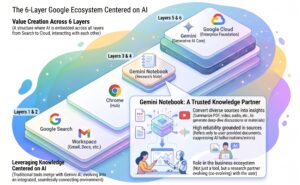
With the rapid evolution of generative AI, letting Google Drive remain a mere “storage locker” for files has become a major missed opportunity. By fundamentally rethinking how you store data in Google Drive and integrating it with AI tools like Gemini, you can transform it into an evolving intellectual asset—a knowledge hub or knowledge base—that grows increasingly tailored to you the more you use it.
There are three primary ways to transform Google Drive into a foundation for knowledge creation. Below is a detailed breakdown of their features and specific applications.
Table of Contents
- Method 1: Organizing Google Drive Folder Hierarchies for Optimal Generative AI Integration
- Three Design Principles to Optimize AI Integration
- Recommended Folder Hierarchy Model (Example)
- Copying Folders from Other Cloud Services to Google Drive
- Method 2: Using Google Drive’s “Projects” Feature
- Method 3: Auto-Syncing and Integrating with Gemini Notebook
- Steps to Start Auto-Sync
- Key Features and Rules of Auto-Sync
- Updating Immediately (Manual Instant Sync)
Method 1: Organizing Google Drive Folder Hierarchies for Optimal Generative AI Integration
When it comes to folder structures that deliver the best results when integrating Gemini with Google Workspace (Drive, Docs, etc.), the simple conclusion is: a clean, straightforward hierarchy clearly separated by theme and project is best for both humans and Gemini.
Because Gemini performs advanced semantic search (understanding meaning and context), you do not need deeply nested folders. However, the more organized your information is, the better it prevents hallucinations and delivers precise answers. It also makes it vastly easier for you to pinpoint sources in Gemini Notebook or find where outputs are stored.
1. Three Design Principles to Optimize AI Integration
- Enforce “One Theme = One Folder”
When you ask Gemini to “summarize project X,” if unrelated documents sit in the same folder, it may inadvertently pull them in and include them in its summaries or aggregations. Separate your top-level folders by project, client, or purpose. - Keep Hierarchies Shallow (3 Levels Max Is Ideal)
Deeply nested structures where humans get lost (folders inside folders inside folders…) also dilute contextual priority for Gemini. Aim for a flat, broad architecture whenever possible. - Embed Context in File Names
Gemini relies heavily on file names and in-document text, not just folder names. Beyond keeping your folders tidy, using consistent naming conventions likeYYYY-MM-DD_ProjectName_Contentdrastically enhances search accuracy. Furthermore, when saving responses generated from your AI prompts, naming the file after a short summary of the prompt makes it significantly easier to retrieve later.
2. Recommended Folder Hierarchy Model (Example)
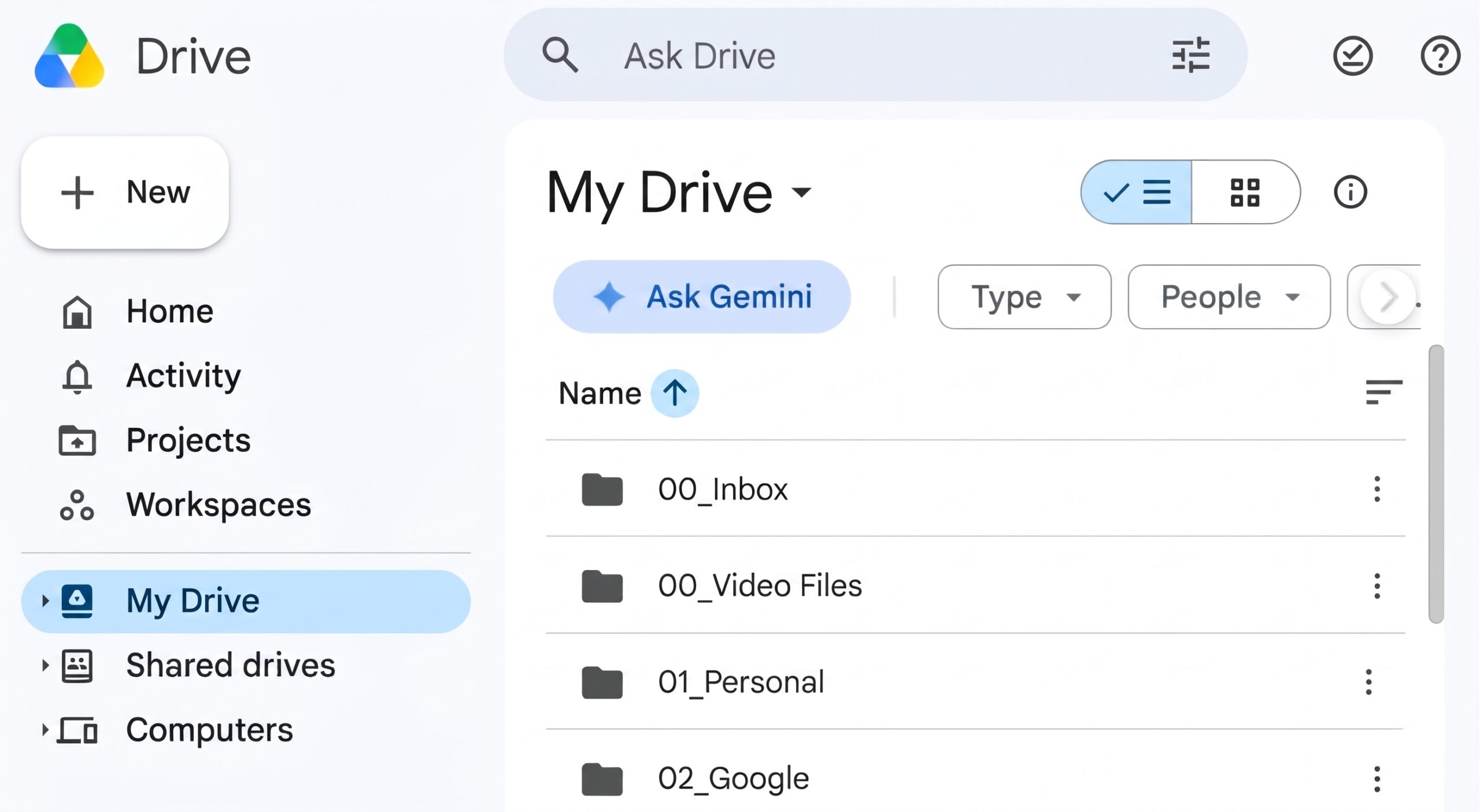
Here is a sample folder structure based on my own Google Drive setup:
Plaintext
My Drive
│
├── 00_Inbox (Temporary / Unsorted)
│     └── *Temporary notes, assets, etc., before sorting into 01+ folders
├── 01_Personal (Personal information)
│     ├── Family
│     │     ├── 01_Personal Records
│     │     ├── 02_Financial & Assets
│     │     └── 03_Health & Medical
│     └── Resumes & Career Records
├── 02_Google (Google Apps & Tools)
│     ├── Google Workspace
│     ├── Google Drive
│     ├── Gmail
│     ├── Google Maps
│     └── Gemini
├── 03_Media Studies
│     ├── Media Effects Theory
│     ├── Public Opinion Research
│     ├── Internet & Society
│     └── Content Analysis
├── 04_Generative AI
│     ├── Generative AI Research
│     ├── KM Methods (GenAI Portal)
│     ├── ChatGPT
│     ├── Gemini
│     └── Claude
├── 05_Trivia & Quizzes
│     ├── Various Quizzes (Website)
│     ├── Biographies & People
│     ├── History
│     ├── Language Learning
│     └── World Heritage
├── 06_Languages
│     ├── English
│     ├── French
│     ├── Italian
│     ├── German
│     └── Korean
└── 07_Archive (Completed Projects & Historical Data)
      └── 2026 Completed Projects
3. Copying Folders from Other Cloud Services to Google Drive
If you regularly use services like Dropbox, OneDrive, or iCloud and want to leverage Google Drive for generative AI integration, simply install the Google Drive desktop app. Once launched, you can copy files and folders between cloud services directly within macOS Finder or Windows File Explorer using standard copy-and-paste methods.
In this case, the best workflow is to first create the AI-optimized folder hierarchy described above inside your “My Drive,” then copy the relevant folders and files over from Dropbox or other cloud storage. The image below illustrates this setup using a simplified sample model.
Method 2: Using Google Drive’s “Projects” Feature
Best for: Daily workflow support, lightweight data gathering, and contextual consulting across Calendar and Gmail.
Google Drive’s “Projects” feature lets you group related files and folders into a unified workspace, allowing Gemini to answer questions using that entire dataset as context.
- Mechanisms and Features
- Deep Integration with Calendar, Gmail, and Chat: By checking “Allow source searching” in the settings, Gemini queries data across your files in Drive, your Gmail inbox, Google Calendar events, and Google Chat messages to formulate answers.
- Personalized Answers: By cross-referencing shared Drive documents with your private history—such as emails and schedule data—Gemini provides highly tailored, contextual assistance.
- AI-Powered Document Suggestions (Candidate Lists): When you create a project, the AI automatically scans your Drive and recommends related files with prompts like “Would you like to add these files to the project?”
- Creating a Project
Method 3: Auto-Syncing and Integrating with Gemini Notebook
With the May 2026 update, Gemini Notebook now natively supports automatic background synchronization with Google Drive (Google Docs, Sheets, and Slides). You no longer need to click a manual refresh button every time you make an edit—updating a file in Drive automatically updates the source within NotebookLM.
1. Steps to Start Auto-Sync
No special administrative configurations or optional toggles are required:
- Open Gemini Notebook and create or select a notebook.
- In the Add Sources screen, select Google Drive.
- Choose the files (Google Docs, Sheets, or Slides) you want to sync and import them.
That is all it takes. From this point forward, whenever you modify an original file, a background sync runs automatically every few minutes, keeping the information referenced by Gemini Notebook up to date.
2. Key Features and Rules of Auto-Sync
- Automatic Background Updates: When you edit files in Google Drive, Gemini Notebook detects the changes and syncs the content every few minutes.
- Strict Permission and Deletion Syncing:
- Deleting a file from Drive automatically removes it from the Gemini Notebook sources.
- If file permissions change (e.g., your view access is revoked), Gemini Notebook will immediately lose access to that file as well.
- No Admin or User Configuration Required: Because this feature is enabled across the board for all users by default, there is no toggle switch to turn it on or off.
3. Updating Immediately (Manual Instant Sync)
If you do not want to wait for the few-minute background sync window and need updates reflected right away, you can trigger a manual sync:
- From the Sources list on the left side of the NotebookLM interface, click to open the target file.
- Click “Click to sync with Google Drive” displayed on the screen. The source will immediately refresh to the latest version.
⚠️ Important Considerations
- Unsupported File Formats for Native Auto-Sync: Standalone PDFs stored in Google Drive or imported website URLs may not support native auto-sync. When these sources are modified, manually resync them from the sources panel or delete and re-import them.
- Handling of Comments and Footnotes: While main document text in Google Docs syncs seamlessly, inline comments and footnotes are typically excluded from imports. Make sure any critical context intended for the AI is placed directly in the main body text.






Comments